Install the control plane
The control plane is your own CDN admin console; one server is enough. Prepare a fresh server, copy the one-line install command from the licence portal and run it, set the administrator during the install, then sign in and add nodes and sites from the console.
System requirements
The control plane and nodes run on x86_64 only and need a freshly installed system. The installer runs preflight checks first: "failed" items must be fixed, "warning" items can be confirmed.
Minimum:
- OS: Ubuntu 24.04 supported; Ubuntu 22.04 / 20.04, Debian 10–13 and Rocky / AlmaLinux / RHEL 8–10 compatible (version 10 needs x86-64-v3)
- CPU: x86_64 with SSE4.2
- At least 4 GB of memory
- At least 10 GB of disk
Recommended:
- 2 CPU cores and 8 GB of memory
- 40 GB of disk or more, ideally a 100 GB SSD
Network: open TCP 443 (or the HTTPS port you choose) and TCP 80, plus the two gateway ports printed at the end of the install; the control plane must reach auth.cdnca.com and the package source. Use a clean system with no web server or database preinstalled; the server’s public IP must match the licensed IP. Node requirements are in System requirements.
Install methods
Choose the method that fits you:
- Method 1: the one-line command for the commercial edition, generated in the licence portal with a one-time activation credential; see Install steps below.
- Method 2: unattended install with flags for the console address, port, e-mail and administrator, for scripted rollouts; see Install the control plane.
- Method 3: the community edition. No activation and completely free; source and packages are published on GitHub, see Community edition.
The one-line command looks like this; use the one you copy from the portal (it carries the activation credential and is valid for 24 hours):
(f=$(mktemp) || exit 1; trap 'rc=$?; rm -f "$f"; exit $rc' EXIT; trap 'exit 130' INT; trap 'exit 143' TERM; { curl --proto '=https' --proto-redir '=https' -fsSL -o "$f" 'https://auth.cdnca.com/downloads/install-control.sh'; } || { rc=$?; echo '[cdnca-control] error: 无法下载安装脚本' >&2; exit $rc; }; { [ "$(head -c 2 "$f")" = '#!' ] && [ "$(tail -n 1 "$f")" = 'main "$@"' ]; } || { echo '[cdnca-control] error: 下载的安装脚本为空或不完整' >&2; exit 1; }; bash "$f" --licensing-server 'https://auth.cdnca.com')Install steps
Each step below follows the real screens; screenshots come from a live environment with IPs and IDs blurred.
Sign in to the licence portal
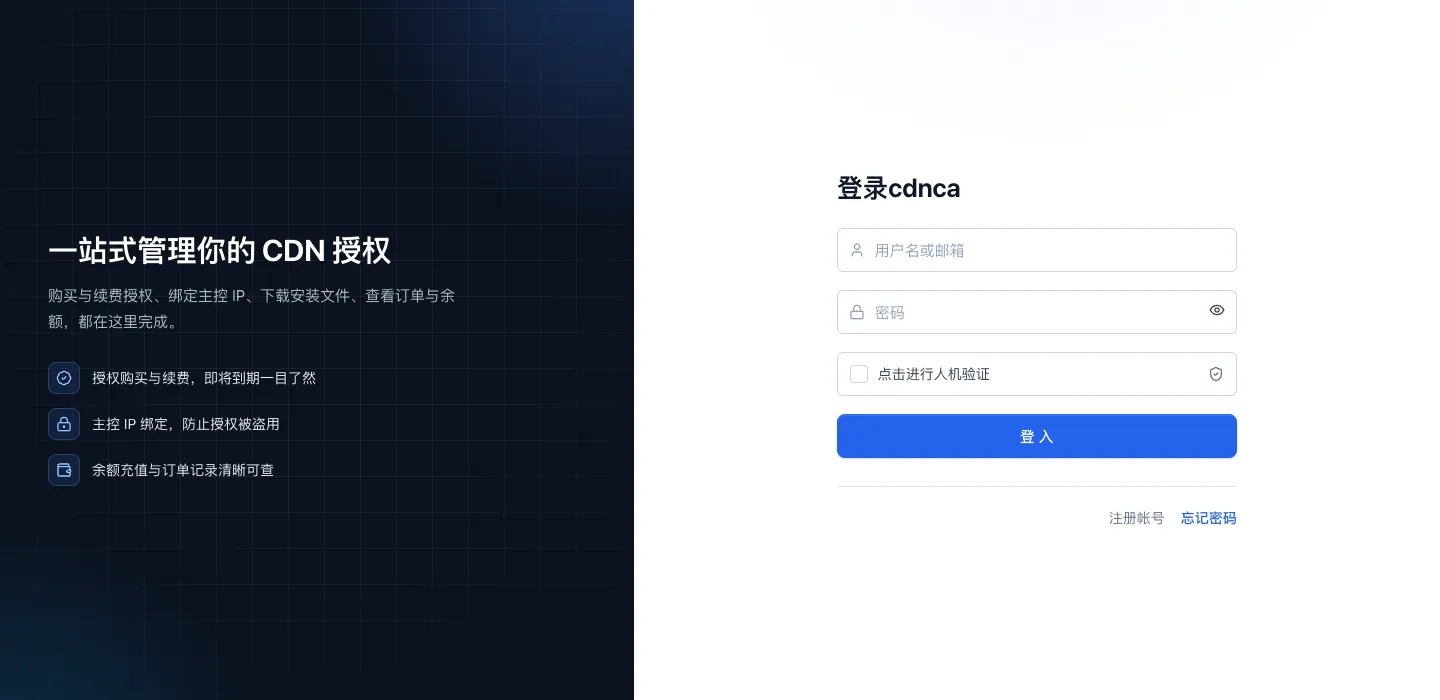
Open the licence portal at auth.cdnca.com. Without an account, choose Sign up first and then sign in. The portal handles licences, install commands, orders and balance; it is not your CDN console.
Generate the install command
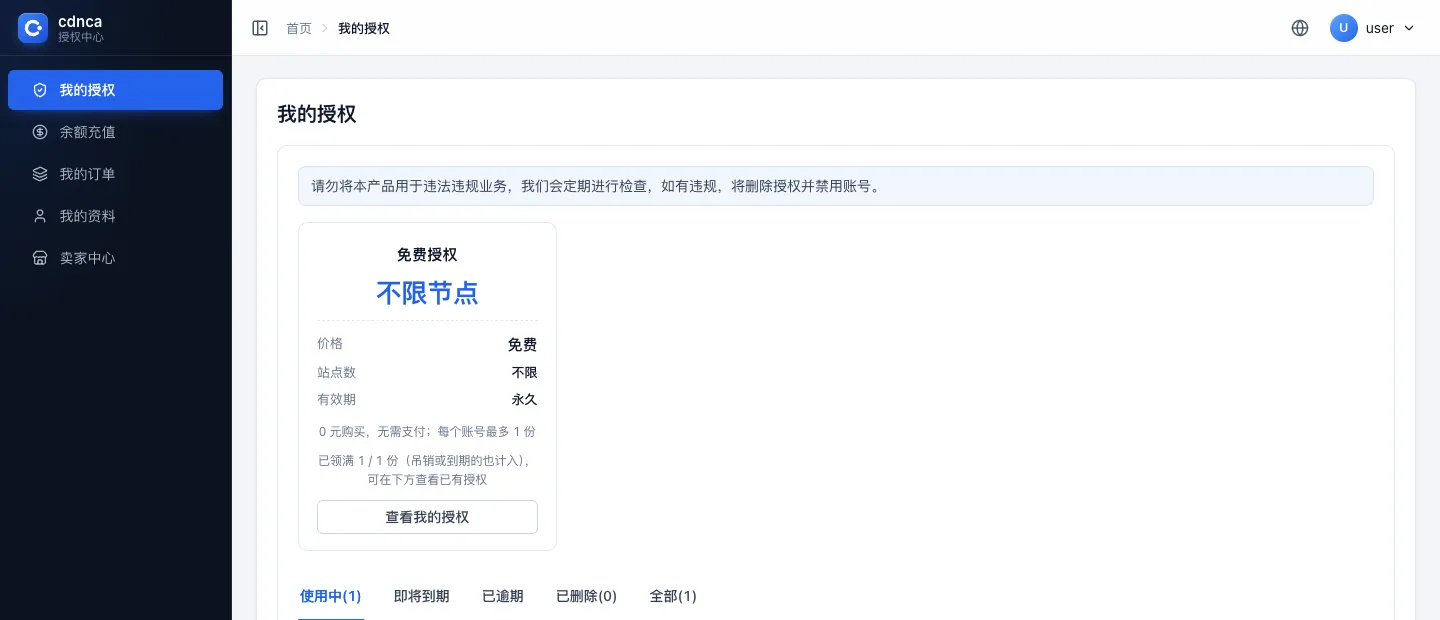
Open My licences on the left, claim the free licence or buy one, then open the licence you will use.
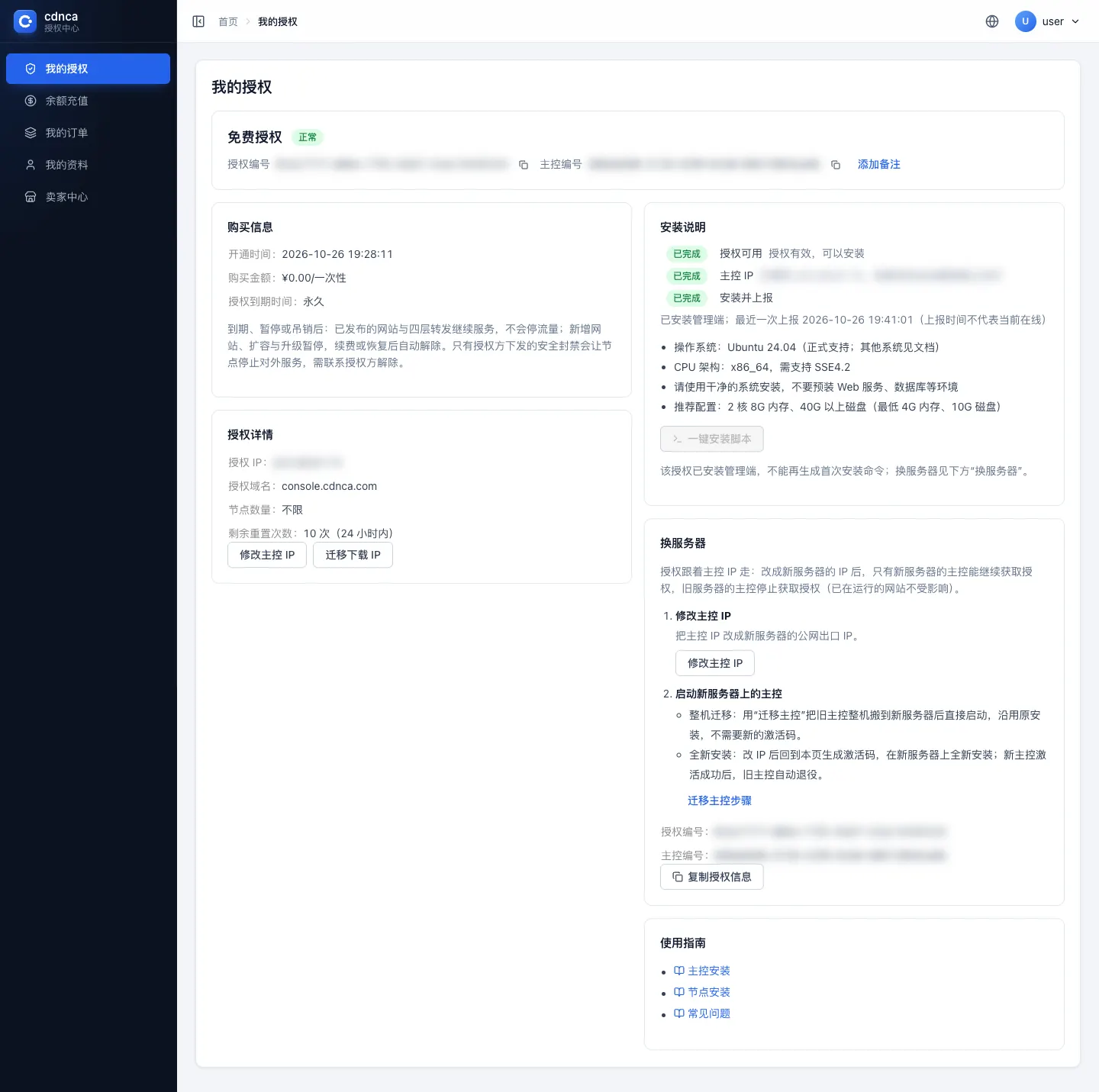
- Under Licence details, check that the licensed IP matches the server’s public IP. If not, use Change control-plane IP first; an unregistered IP gets 403 when downloading the installer.
- Under Install instructions on the right, choose One-click install script → Generate install command → Copy. The command is shown only once and is for your own server; do not share it or paste it into public tickets.
Run it on the server
Log in to the server as root and paste the whole command; there is nothing else to add. The installer has 12 steps and shows the current step, overall progress and the estimated time left; the full output goes to /var/log/cdnca-install-control-*.log:
- Preflight checks and console address
- Install base tools
- Confirm the activation credential and administrator account
- Download and verify the package
- Install dependencies (PostgreSQL, ClickHouse, Redis, ClamAV, RustFS)
- Generate the control-plane identity and certificates
- Download node packages and components
- Initialise the database and messaging
- Activate the licence
- Initialise console data
- Start services and self-check
- Summarise the result
Each finished step prints "✓ [n/12] step done" in the terminal (the installer prints it in Chinese); a failure prints "✗ [n/12] … failed" with an error line above it. Do not close the terminal after a download or unpack message.
Answer the prompts
The installer asks for the following:
| Prompt | What to enter |
|---|---|
| Console public domain or IP | The address admins and users open, for example console.cdnca.com; check DNS first when using a domain |
| HTTPS port | 443 by default; with another port, every console address must include it |
| Certificate contact e-mail | A working mailbox for HTTPS certificate requests; it is not the admin login |
| Admin username | Your choice, there is no default account; starts with a lowercase letter, 3–128 characters of lowercase letters, digits, underscore, dot and hyphen |
| Admin password | 8–1024 characters with at least two of upper case, lower case, digits and symbols, no spaces or non-ASCII characters; nothing is echoed while typing, enter it twice |
If you already have a trusted public certificate, pass it with --public-cert-file and --public-key-file and the installer will not request one.
Install complete
control-api installed, activated and ready in the terminal means the install is complete. The installer also prints two gateway ports (node enrollment and node channel); open TCP 443, 80 and those two ports in the host firewall and the cloud security group. You can check that all four services are active:
systemctl is-active cdnca-control-api cdnca-agent-gateway cdnca-control-nats cdnca-control-webBack in the licence details, the licensed IP and domain should now show the values reported by this control plane.
First sign-in
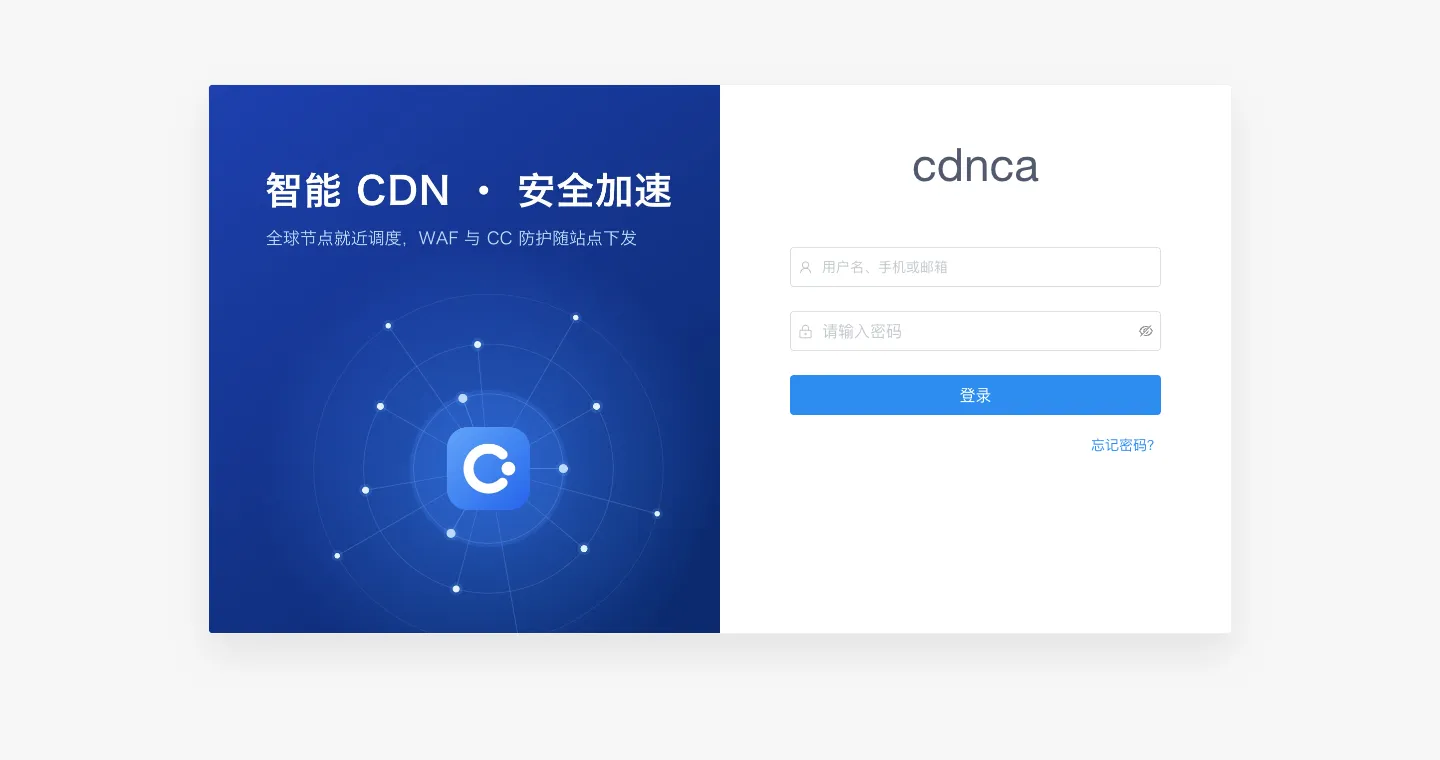
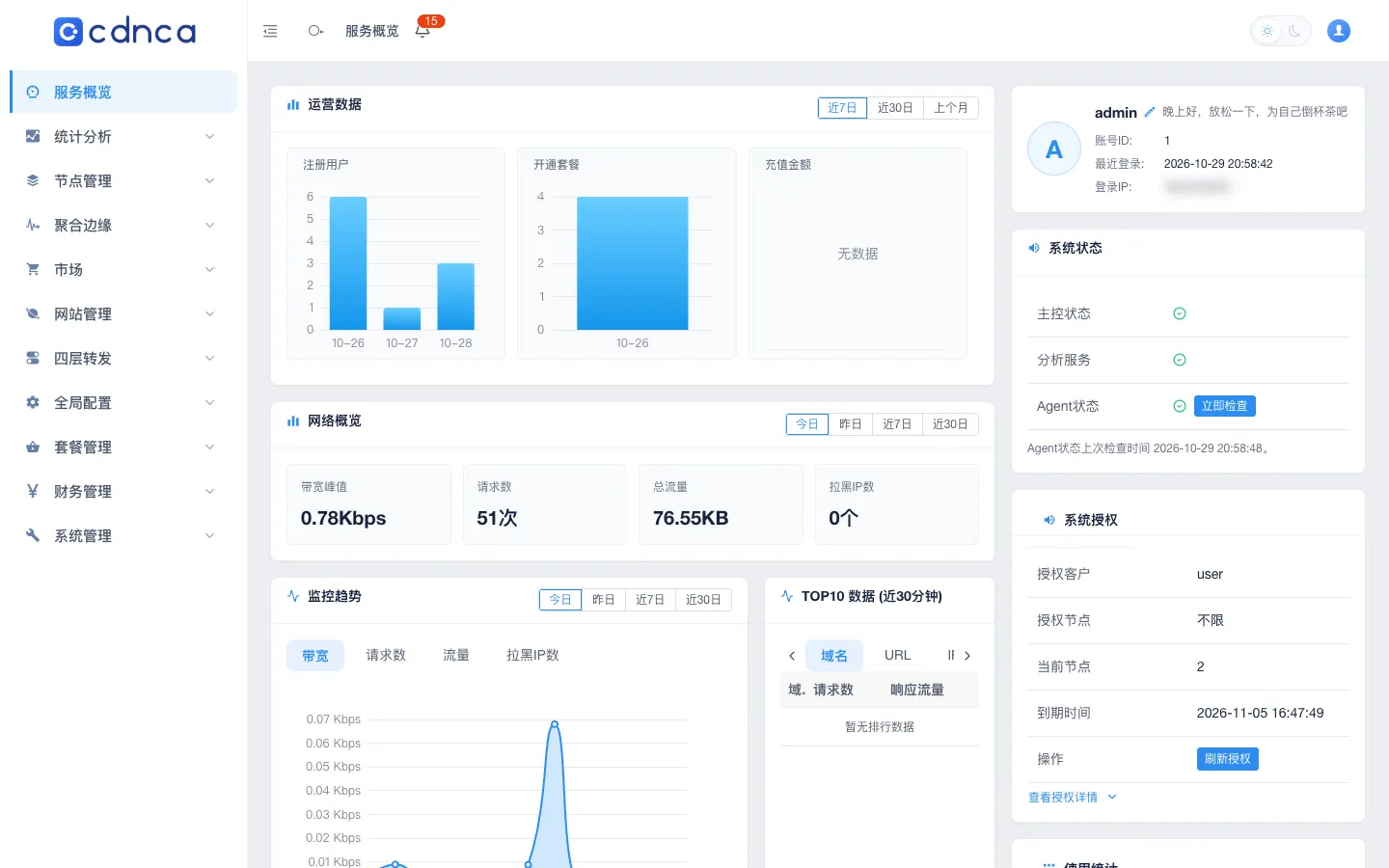
Open https://your-console-domain/dashboard/login in a browser (include the port if it is not 443) and sign in with the administrator you just set. The Control plane URL printed by the installer omits the port; use the port you entered.
Add your first node
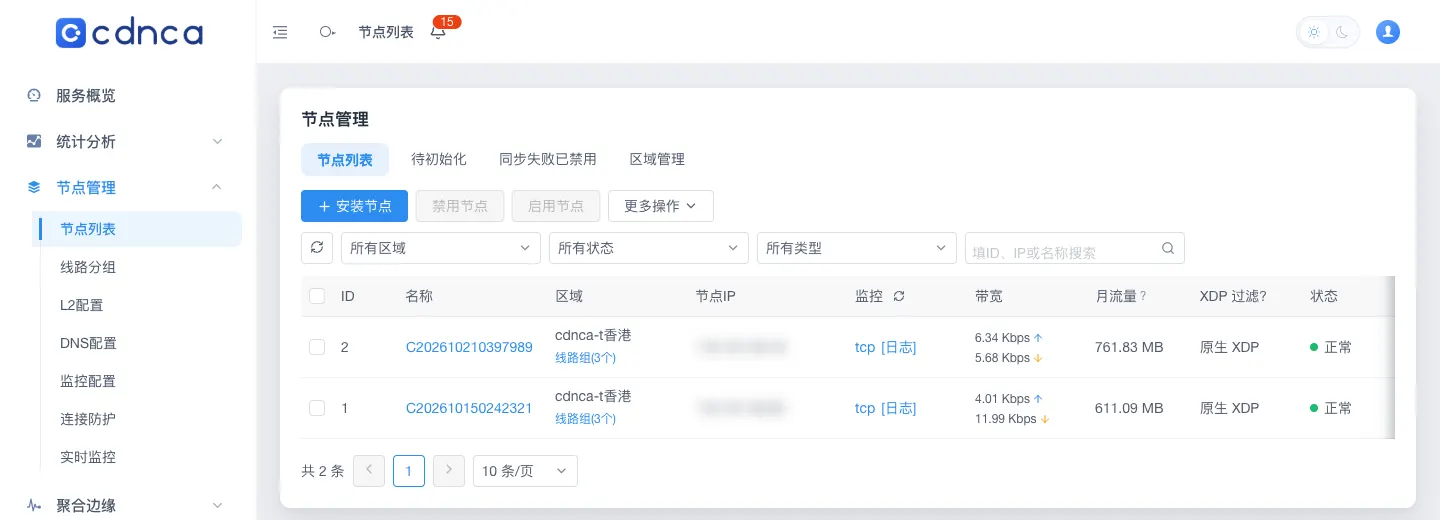
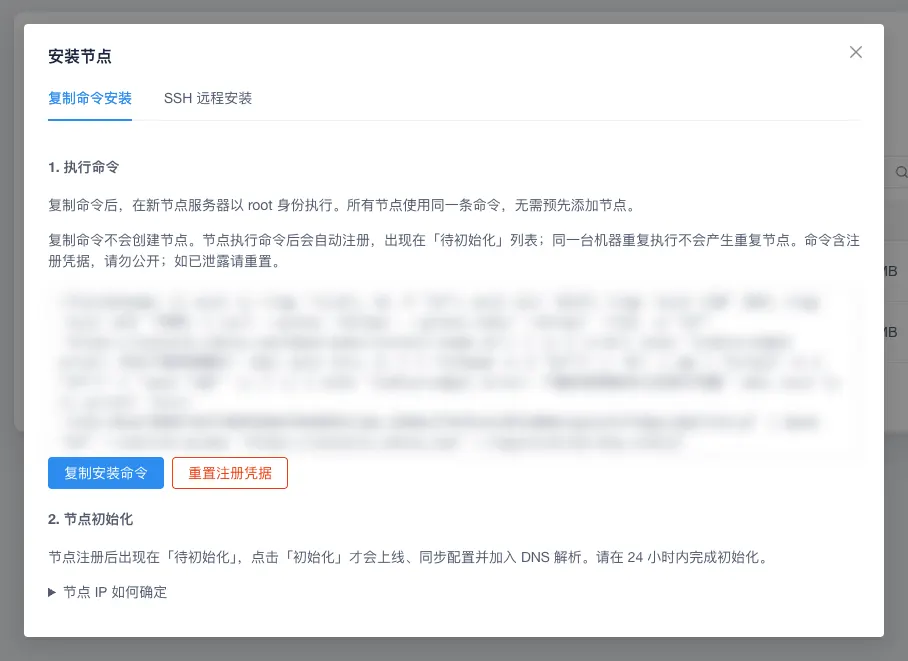
Go to Nodes → Node list, choose Install node → Copy command → Copy install command, and run it as root on the node server. All nodes share one command; you do not add nodes by hand first.
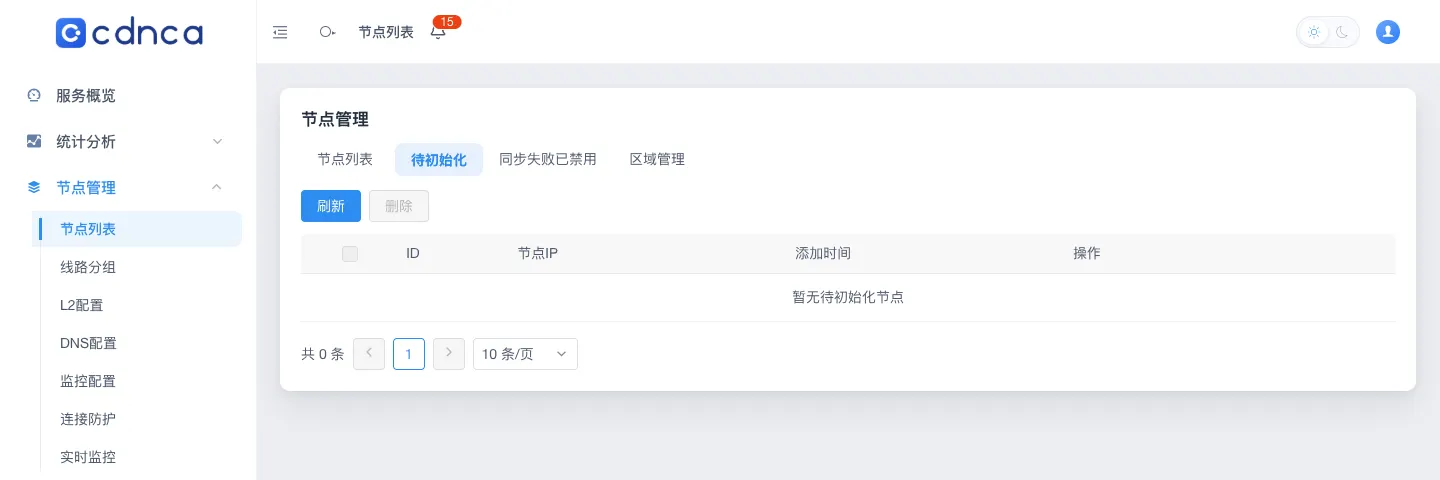
After the command finishes, the node appears under Pending initialisation; choose Initialise and pick a region. Once it is Normal, create a line group and add the node IP to it. Full steps are in Install a node.
Add your first site
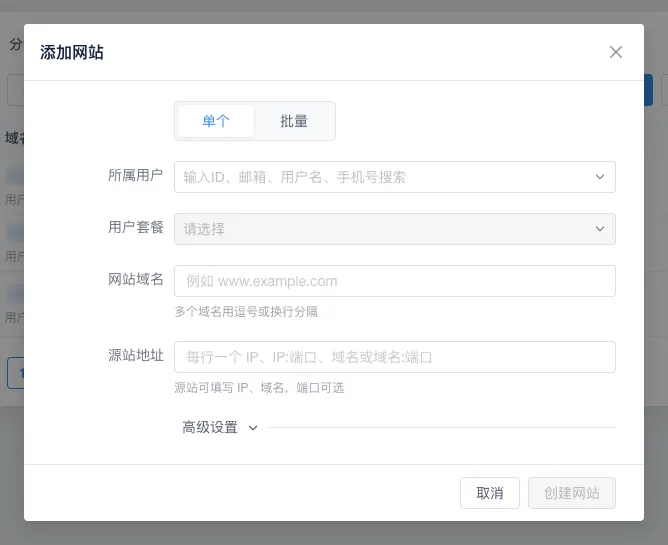
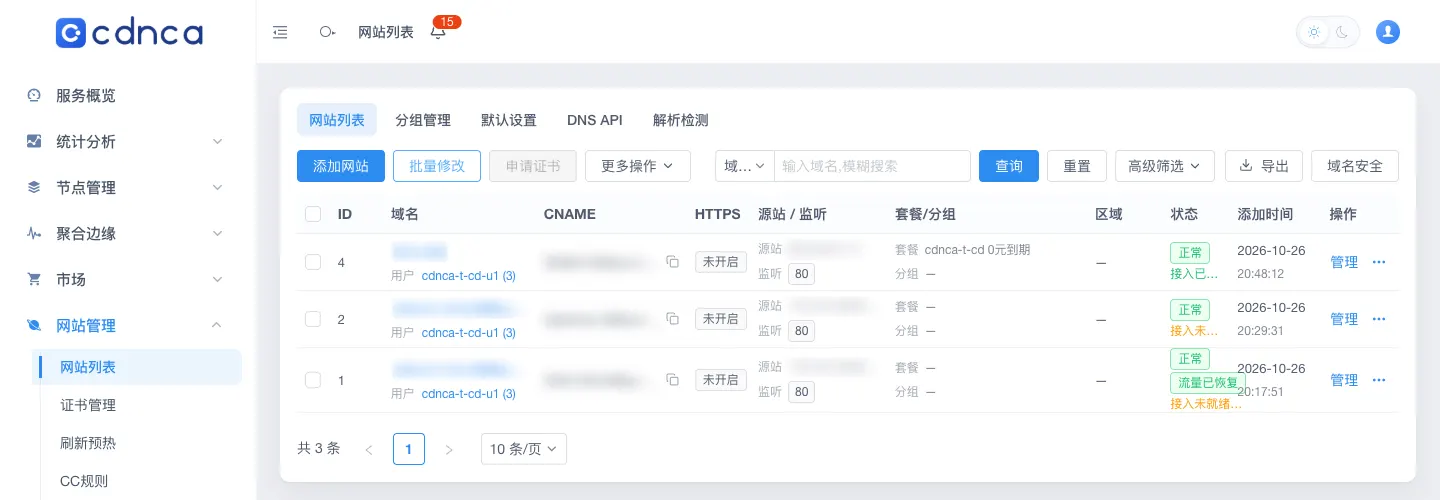
Go to Sites → Site list, choose Add site, pick the owner and the user plan, enter the domains and origins, and choose Create site. When the CNAME appears in the list, point the domain at it at your DNS provider.
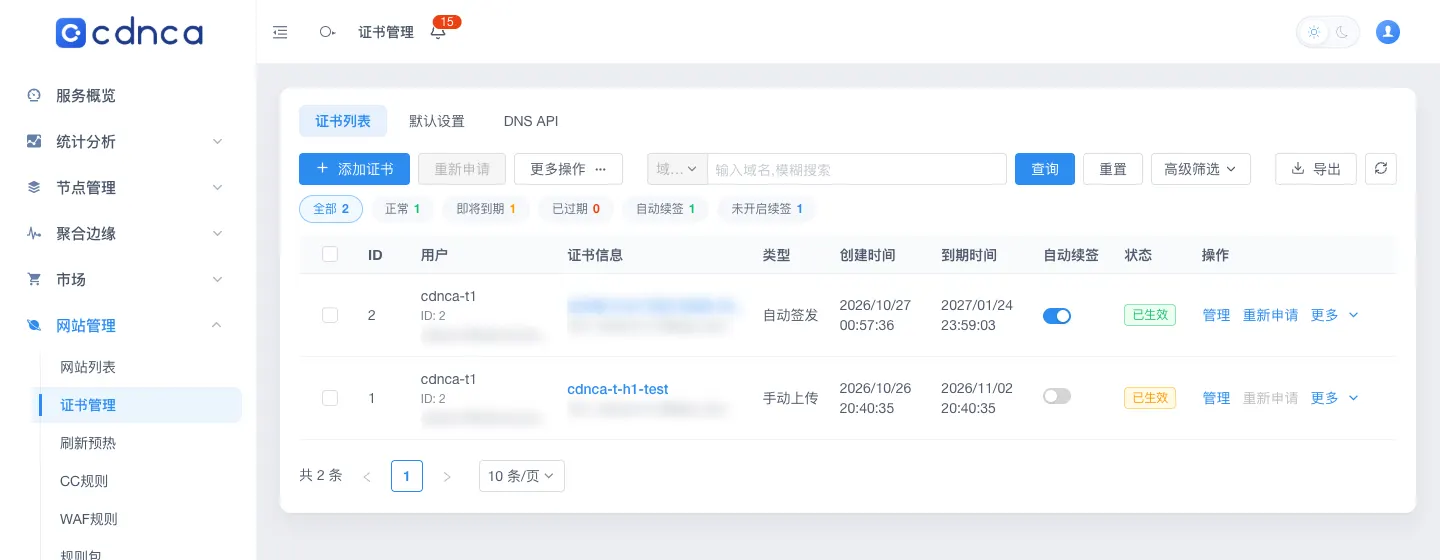
For HTTPS, request or upload a certificate under Sites → Certificates, then bind it in the site’s HTTPS settings; see HTTPS certificates.
System services and boot
The installer registers the control plane as systemd services, enables them at boot and restarts them on failure; there is no separate service install step. The control plane consists of four services:
- cdnca-control-api: control-plane API
- cdnca-agent-gateway: node gateway
- cdnca-control-nats: messaging
- cdnca-control-web: admin console
Logs:
journalctl -u cdnca-control-api -n 200 --no-pagerRestart commands are in Restart.
Upgrade, reinstall, migrate and uninstall
- Upgrade: only from System → Maintenance → System upgrade in the console; nodes are upgraded from the same page. Do not replace binaries by hand.
- Backup: back up now or schedule backups and off-site storage under Maintenance → Backup and migration.
- Migrate to a new server: moves the whole control plane and keeps the original install; no new install command is needed.
- Reinstall: act on the failed step; if step 9 (activate the licence) or a later step failed, do not rerun a fresh install. See If the install fails.
- Uninstall the control plane: there is no uninstall script; reinstall the OS to remove it completely. Uninstall a node with the script on the node.
Community edition
The community edition needs no activation and is completely free under the AGPL-3.0 licence, with a built-in community licence: nothing to buy or activate in the licence portal. Its source and packages are published on GitHub (github.com/CDNCA/cdnca); the first stable release is coming soon, and this section will then explain how to install it.
FAQ
Installer download returns 403
- Symptom
- The terminal prints a [cdnca-control] error line saying the installer cannot be downloaded.
- Cause
- The server’s public IP is not registered in the licence portal, or it is not the egress IP.
- Fix
- Set the control-plane IP under My licences to the server’s egress IP and run the same command again.
Preflight "failed" or "warning"
- Symptom
- Step 1 lists failed or warning items.
- Cause
- "Failed" items are hard requirements (OS version, architecture, memory, ports in use and so on); "warning" items are advisory.
- Fix
- Fix every failed item before continuing; confirm warnings, or add --yes at the end of the command.
Activation credential expired
- Symptom
- The command was run more than 24 hours after it was generated and the installer exits with an error.
- Cause
- The activation credential in the command is valid for 24 hours.
- Fix
- Generate a new install command in the licence details.
Nothing appears while typing the password
- Symptom
- No characters show while entering the administrator password.
- Cause
- The input is hidden on purpose; nothing is stuck.
- Fix
- Press Enter when done, then type it again to confirm.
The console does not open in the browser
- Symptom
- The console address does not respond after the install.
- Cause
- Usually DNS has not taken effect, the port is wrong, or the firewall or security group does not allow 443 and 80.
- Fix
- Check DNS, the public IP, the actual port and the security group; the address must include /dashboard/login and the port when it is not 443. Wait for DNS changes to apply.
The console opens but you cannot sign in
- Symptom
- The sign-in page opens but signing in fails.
- Cause
- There is no default admin account; the username is the one you set during the install. Or a service is not running.
- Fix
- Check the username and service status (all four services should be active). For a lost password see Lost the admin password.
Rerunning reports existing installation state
- Symptom
- Rerunning the command reports existing control installation state or existing_state_requires_review.
- Cause
- A previous attempt failed between steps 5 and 8 and left some state behind.
- Fix
- Do not delete directories to make the host look fresh; send the log and the failed step to support, or use a clean server.
Is ARM supported?
- Symptom
- You want to install on an ARM server.
- Cause
- Packages are built for x86_64 (amd64) only.
- Fix
- Use an x86_64 server.
More in Troubleshooting.